Introduction
Every now and then, your AI might not behave quite the way you expect with your Oh My Hi site. Maybe it can’t find something, or a change you asked for isn’t showing up. The good news is that most of these hiccups have a simple fix. Find the issue that matches what you’re seeing and try the fix below.
Common Fixes
Fix 1: Log Out and Back In to Your AI Tool
Try this if: Your AI can’t find your site, says it doesn’t have access, or doesn’t seem to see something you know is there. This also helps if you don’t see a button or feature in ChatGPT or Claude that you’re expecting to find, such as Connectors or Plugins.
- Log out of ChatGPT or Claude.
- Log back in.
- Start a new chat and try your request again (if applicable).
💡 This resets the connection and refreshes what you see in your AI tool. It’s a great first step for almost any problem.ot of issues right away. It’s a great first step for almost any problem.
Fix 2: Refresh the Tool List
Try this if: You ask your AI to do something on your site and it says it can’t, or a new feature isn’t showing up.
From time to time, new features are added to the Oh My Hi connector. Your AI won’t always see them right away, so you’ll want to refresh its tool list.
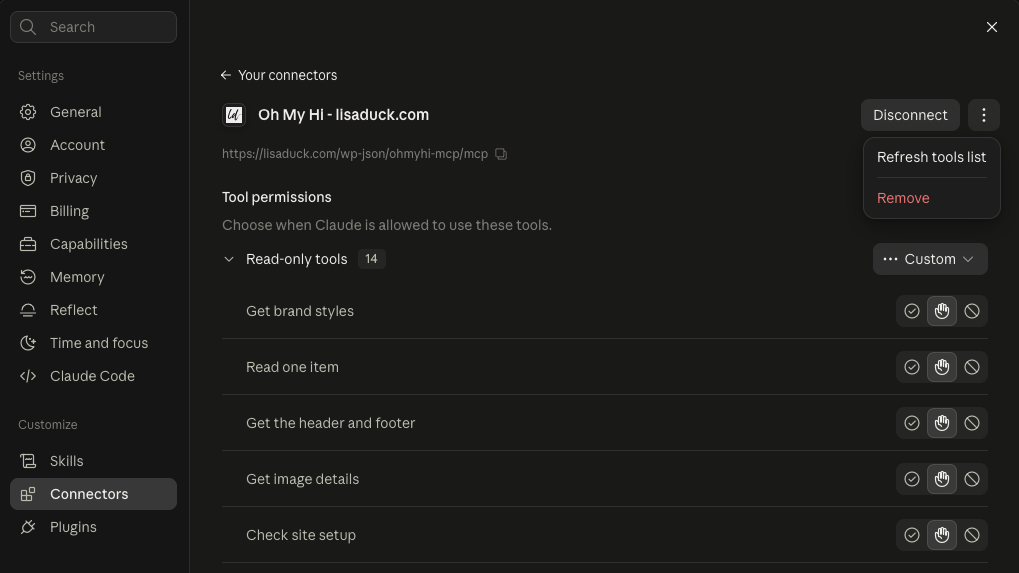
In Claude:
- Click your name in the lower left corner, then click Settings.
- Click Connectors.
- Click on your Oh My Hi connector.
- Look for the three dots in the upper right, next to the Disconnect button, and click them.
- Click Refresh tools list.
In ChatGPT:
- Click your name in the lower left corner, then click Settings.
- Click Plugins.
- Click on your Oh My Hi app.
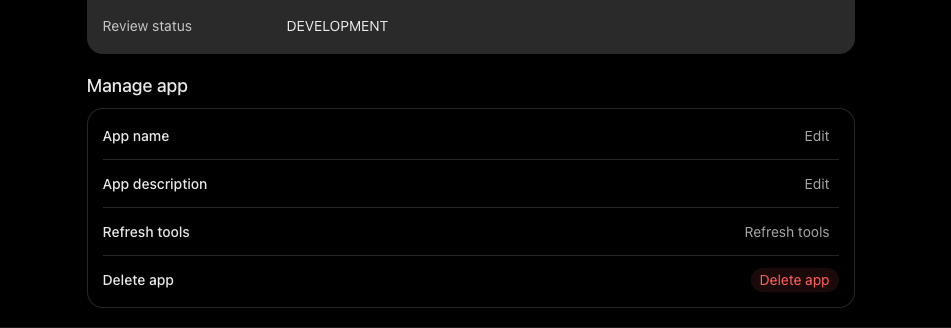
- Scroll down to the Manage app section.
- Next to Refresh tools, click Refresh tools.
Once the tools are refreshed, start a new chat and try your request again.
✅ Refreshing gives your AI the most up-to-date list of what it can do on your site. There’s no need to disconnect or reconnect.ost up-to-date list of what it can do on your site.
Fix 3: Check Whether Your Page Is a Preview or Live
Try this if: Your AI says it built or updated a page, but you don’t see it on your website, or the page doesn’t match what your AI described.
When your AI builds or changes a page, it creates a draft or preview first. That’s on purpose, so you can review it before anyone else sees it.
- Click the preview link your AI gave you to see the page.
- When you’re happy with it, ask your AI to publish it or replace your current page with it.
- Follow the prompts on your screen. Your AI will ask you to approve the changes before they go live.
💡 Not sure if your page is live? Just ask your AI: “Is this page published or still a draft?”
Fix 4: Give the Cache a Moment to Catch Up
Try this if: Your AI says a change is done, but you still see the old version on your site.
Your site keeps a saved copy of your pages, called a cache, so it loads faster for visitors. It can take a few minutes to update after a change.
- Wait a minute or two.
- Refresh the page in your browser.
- If you still see the old version, open your site in a private or incognito window to see the most current version.
Still Stuck?
If you’ve tried these fixes and something still isn’t working, reach out to our support team. Let us know which AI tool you’re using, what you asked it to do, and what happened. That helps us get you sorted quickly.
Wrap-Up
Most of the time, a quick log out and back in, a fresh chat, or a minute of patience is all it takes. Once you know these little tricks, working with your AI on your Oh My Hi site gets so much easier.