
Introduction
When someone cancels their subscription, you’ll want your site to update their tags and follow up for you. That way you don’t have to track cancellations by hand. This tutorial shows you how to build one simple automation that runs whenever a subscription is cancelled.
📌 Before you begin: You’ll need a working subscription form connected to Stripe, with webhooks set up. If you haven’t done that yet, start with Sell and Manage Subscriptions https://ohmyhi.com/doc/sell-and-manage-subscriptions/.
Step-by-Step Guide
Step 1: Create a New Automation
- Go to CRM > Automations in your Oh My Hi dashboard.
- Click New Automation.
Step 2: Choose the Subscription Canceled Trigger
- From the list of triggers, choose Subscription Canceled.
- Select the subscription form this automation should watch.
- Give your automation a clear name, like “Membership Canceled.”
💡 If you sell more than one subscription, create a separate automation for each form.
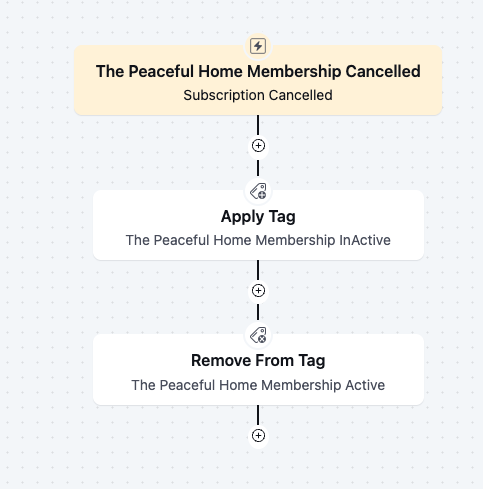
Step 3: Apply an Inactive Tag
- Click the plus icon below the trigger.
- Choose Apply Tag.
- Select (or create) a tag like Membership InActive.
This makes it easy to see who has canceled and to send them follow-up emails later.
Step 4: Remove the Active Tag
- Click the plus icon below the Apply Tag action.
- Choose Remove From Tag.
- Select your Membership Active tag. This is the tag your subscribers receive when they sign up.
Step 5: Send a Follow-Up Email (Optional)
- Click the plus icon below the Remove From Tag action.
- Choose Send Email and write a short message to the customer confirming the cancellation. You can invite them to reply or re-subscribe if it was a mistake.
- Want to know when someone cancels? Add a second email that goes to you.
- Save the automation and set it to Active.
Step 6: Test Your Setup
- Purchase a test subscription on your form. A coupon for a small amount works well if you’re in Live mode.
- Log in to Stripe, find the subscription, and cancel it immediately (not at the end of the period).
- Check the contact in your CRM. The InActive tag should be applied, the Active tag should be gone, and your email should arrive.
⚠️ When a customer cancels through the Stripe Customer Portal, the subscription moves to “pending cancel.” It stays active until the end of the period they’ve already paid for. Your automation runs when the subscription actually cancels, either at the end of that term or right away if you cancel it immediately in Stripe. So if you test by canceling in the portal, nothing will happen right away. That’s expected.
⚠️ A single failed payment doesn’t trigger this automation. Only a full cancellation does. If you want members removed after repeated failed payments, open Revenue recovery in Stripe and set subscriptions to cancel once all retries fail. You can also turn on Stripe’s failed-payment emails there, so customers get a link to update their card.
Wrap-Up
You now have an automation that updates your subscriber’s tags and follows up the moment their subscription ends. Your member list stays accurate without any manual cleanup.
What’s Next?
Consider building a short win-back email sequence for your InActive tag, like a check-in a few weeks later with an easy link to rejoin.