
Some months are quietly productive.
October was not one of those months. 😄
After months of building, weeks of beta testing, and a few too many late nights for Jeremy, our new website sidekick officially launched. Grab your coffee, because here’s everything that happened. 👇
🤖 System Updates
OHMi Is Officially Here!
If you’ve been around this month, you’ve definitely heard us talking about OHMi.
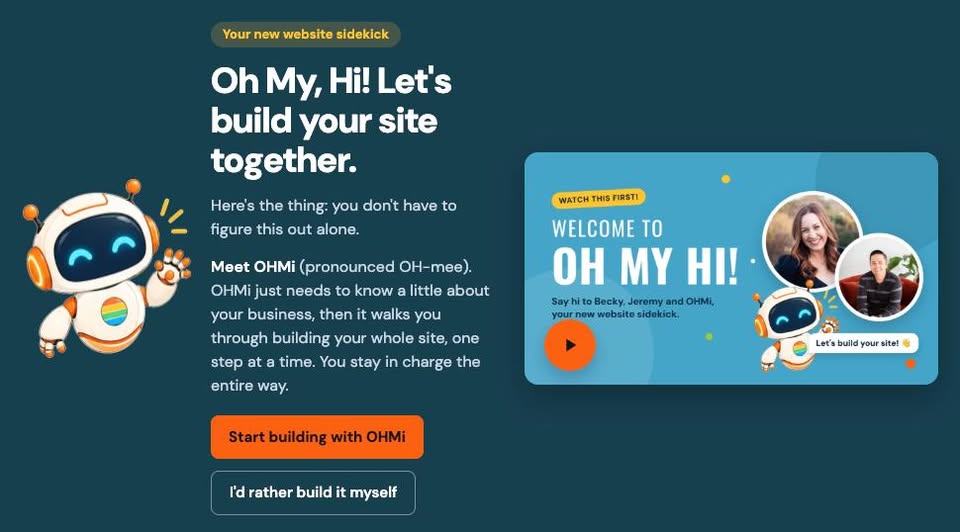
Here’s the quick version: OHMi connects your ChatGPT or Claude account (free versions work too) to your Oh My Hi site. You tell it what you want, and it builds it right on your site, from new pages to blog posts to brand colors.

How fast is it? Becky built a full five-page site in 42 minutes. And nothing goes live until you click Approve, so you stay in charge the whole time.
Your new Welcome dashboard walks you through getting started in three steps:
- Connect OHMi to ChatGPT or Claude
- Teach it about your business with the AI Content Toolkit
- Start asking
Prefer to build by hand? That’s totally fine. The editor and pattern library aren’t going anywhere.
Missed the Announcement? See OHMi in Action:
🆕 Square Integration
If you check out customers with Square, their info can now flow straight into your Oh My Hi CRM. This is available on all Oh My Hi Plus and Premium plans.
That means no exporting spreadsheets and no lost contacts. You’ll also see what people bought, how much they’ve spent, and when they last ordered, so you know exactly who to follow up with.
To turn it on: Log in to your site, go to Advanced settings, then Square, and click Connect. Easy peasy!
🧠 What We Learned in October
OHMi Tips from Live Support
We spent a lot of October on live support helping people take OHMi for a spin. Here’s what keeps coming up:
🎙️ Talk, don’t type. Lisa built a pretend bakery site just by hitting the microphone button and talking like the owner. OHMi added an interactive map and business hours without even being asked.
🖼️ Name your images. Upload photos to your media library first, and give them real names. “bakery-logo-horizontal” goes a lot further than “IMG_5678.”
🔁 Don’t settle for the first draft. Be honest: “This feels too generic.” “Make my photo bigger.” A screenshot of the section you mean helps a lot.
🤔 Ask what you’re missing. Sami’s go-to: “What else should I be thinking about here?”
Oh My Hi Insider: Choosing Colors That Actually Work
Lisa and Sami took on a topic that trips up a lot of us: website colors.
The big takeaway: Use color like a highlighter, not a paint bucket.
A few more gems from the session:
- Check your contrast with the free WebAIM Contrast Checker. Your text should be easy to read, whether someone has a visual impairment or is just squinting at their phone in the sun.
- Pick two main brand colors and keep the rest neutral. Save your “wow” colors for small pops. (Lisa learned this one the hard way with a very bright orange.)
- Asking OHMi to update your colors? Add, “Please make sure they’re ADA compliant.”
And Sami’s closing advice was our favorite: Colors matter, but copy converts.
🎥 Live Builds with Becky
Becky has been hopping on live builds with members and building right on their sites, start to finish. We turned a few of our favorite moments into quick reels. Take a peek:
- Paige: Cards That Flip
- Jennifer: From Linktree to a Full Website
- Cassie: A Brand-New Site
Want to try it yourself? Pick one idea from these reels and ask OHMi to build it on your site this week. Then come show us what you made!
Live support runs every week, so bring your questions (and your screen-share nerves). Missed a session? Replays are available in your dashboard.
🤔 What’s Next?
This is what building with Oh My Hi looks like now: you talk, OHMi builds, and you approve. Unless you’d rather do it all yourself! 😉
Leave a Reply